Showing posts with label Softwares. Show all posts

Feb 2, 2009

Google Mail Going Offline!


98290_matter I don't mean to cause panic to everyone who uses Google for their mails but yes, Google has pulled the plug from it's mail service.

Google has released from their Labs, Google Offline Mail service which means you can now view, search and compose Google Emails even when no Internet connection is available. Isn't that exciting?

How Google does this? If you're using IE7 or Firefox, they will prompt you to install a small background service called Google Gears in your computer. Google Gears will be the one responsible for caching and synchronizing all your email data with their remote servers. It does this automatically without you having to notice it after your first sync process.

What I like about GMail over outlook is that it is:

  • simple and straightforward,
  • full feature and very fast searching capability,
  • huge storage space for mails - 7Gb, and
  • very portable.

Now, I have every reason to tell my two brothers to dump their old, clunky and highly inefficient M$ Outlook and move in to Google Mail service instead.

Enjoy your offline email browsing with Google Mail

Stumble Upon Toolbar

Jan 22, 2009

Initiating an Almost 'Paper-less' Office

mfln288l

I work in a health care insurance industry and in this business, paper works are undeniably enormous and quite unsightly too. Though the initiative of doing 'paper-less' has been floated before, no real plans were laid out and no real participation by the management has been committed.

We all clearly say that doing 'paper-less' provides many potential benefits, and cost is one of them. Whenever people encounters challenges on implementing this program, all of a sudden they withdraw and not talk about it. True enough, it is very challenging - so this is where the fun and excitement begins!

When we talk about a 'paper-less' program, it is synonymous to using a special software to manage all paper works for distribution and storage. There are many softwares (aka Document Management Softwares - DMS) available in the market but many of which are insanely expensive and will surely make you lock-in to their service - that is something we do not want of course.

For several years, I have had the opportunity to work on several different DMS's and I would say there are many good ones out there as there are many bad ones too. One thing to consider as well is the company that makes these software and we wanted to make sure that they will still be there even after two decades of use.

What are the qualities of a good DMS?

A good DMS must atleast have the following properties:

  • Easily accessible: All employees must have a ready access the uploaded documents for retrieval and review so there will be no physical distribution of documents that will eat up their desktops.
  • Sharing: Uploaded documents must have the capability to share it with others based on the privileges provided by the owner of the document.
  • Accountability: This is done in two ways: 1) version control to monitor all changes made by every single user and, 2) document permission to set security restrictions to every document.

GoogleDocs & Spreadsheet - A good way to start.

To give you an idea on how our office is setup, we have 60 plus employees both in our insurance business and medical clinics which are located in other parts of the city. Yes, papers are used a lot so my challenge here is to significantly minimize paper usage as much as possible if it cannot be remove at all. Since we are using GoogleApps platform anyway (thank goodness for that), for our email, calendar and instant messaging service; we might as well maximize all other services like using GoogleDocs & Spreadsheets as our Document Management System (DMS).

Implementation Plan

Sometimes, the only best option to make a plan like this successful is not to give your employees any other option. ;) Really! Believe me it works all the time. Below is my way of implementing an almost 'paper-less' office:

  1. Make a memo to everyone concerned telling them about your plan and when it will be effective. The schedules of training, transition and implementation must be clearly stated to avoid potential conflicts in the future.
  2. Create a simplified guideline and policy regarding this initiative. This will help the transition to paper-less easy for everyone to follow.
  3. Provide training sessions and learning resources. Since most of the things they need to know can be found on the Internet. I provided our employees links to videos and interactive tutorials for them to study. training sessions are provided only if there are some advanced questions to be asked. Doing this saves time and effort on my part.
  4. Remove all MS Office or Open Office applications installed on every desktop. This will ensure that all employees will be forced to use Google Docs and Spreadsheets and that these documents will be saved in Google servers.
  5. Disallow document saving in any local hard drives or USB drives. This ensures better security and protection in cases of theft, calamity or virus attacks.
  6. Provide regular review and feedback sessions to measure success of the project plan.

I have given my staff relatively three(3) weeks for the transition. With that, I think that is ample time for them to adopt to the new system.

How are you implementing yours?

Stumble Upon Toolbar

Sep 4, 2008

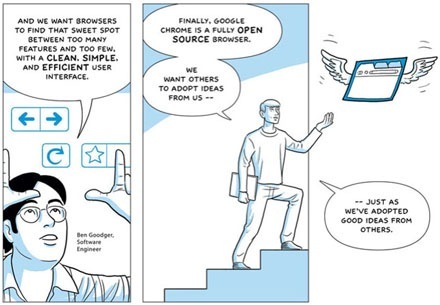
Why a Firefox fan switched to Google Chrome?

chrome2sep2008

I just downloaded the new browser from Google called  Chrome and the very first thing I noticed was it's amazingly fast page rendering capabilities and significantly low memory usage. Something I had been complaining about on Firefox.

I have no accurate benchmarks to show and compare with other browsers but on a user's point of view, here is what I have to say:

1. Incredibly fast.

We're using a lot of Google's products and services in our daily office tasks particularly Google Apps. Google Apps leverages on AJAX to improve its usability features of its products, when using a regular and traditional browser, it takes some time to load everything. With Google Chrome, everything almost instantly appeared in a snap!

2. Low memory usage.

I normally open up and use 8 to 10 tabs all at the same and, you guessed it, sooner or later my browser just hang-up on me. When I hit CTRL-ALT-DEL to check, it has hit as high as 210 MB! Just for a browser. Memory leaks on Firefox is very notorious.

With  Chrome, all tabs runs on a separate process and memory usage is significantly lower that any browser I know and used.

3. User Interface Design

I admit, it's not as pretty as IE or Firefox but it gives me all the viewing space I need without the unnecessary clutter. This was intentionally designed this way so users can get to focus more on the content rather than buttons you see on a browser's toolbar.

4. Security

Well there is no real way to test this feature initially but according to their product specs, everything in Chrome is 'sandboxed' so no rogue or malicious programs can write on your disk or spy on what you type on your keyboard. I'd say, this security design is unique and very well thought of.

5. Application shortcuts

Even with the absence of my favorite extensions and plug-ins, suffice to say I am contented with the Application Shortcut feature of Chrome. It creates a shortcuts of my favorite sites as if it were a real application. I made a few shortcuts for my Google Mail, Google Reader, and Google Docs.

Chrome will has huge, huge potential in the browser market and it will create a massive followers soon after it has its developers develops plug-ins and extension for it. Why another browser? That I will write about on my next post.

Oh yes, I have now switched to Google Chrome.

Stumble Upon Toolbar

Jul 31, 2008

New Product Release: Clinic Management System


KAINOS Health IT Team, my project development team, has just quietly released it's very new Clinic Management System (CMS). KAINOS CMS is basically an electronic patient health record designed for small to medium-sized medical clinics.

It is still in alpha stage and a lot of work needs to be done like user interface design and improvements on other usability features. Overall it looks very promising and in the next two months, it will be on beta stage.

Some notable key features are:

1. Built on open source softwares and runs on PostgreSQL server.
2. Provided as a software-as-a-service (SaaS) architecture.
3. Branding: Clinic logo can be placed on the portal.
4. Has over 8,000 drug listing.
5. Utilizes ICD10 codes.
6. Can customize and group classes of laboratory tests.
7. Calendar Management for patient scheduling.
8. Patient-Doctor Private Forum.
9. Doctor-Doctor Private Forum.
10. And it's FREE!

Future updates:

1. Security : Patient name encryption.
2. SMS Messaging: For doctors and patients.
3. A more sleek and professional user-interface.
4. Provide reference links to other medical sites.
5. High Availability: 24x7x365 Guaranteed Uptime

KAINOS CMS is currently being tested by all our medical clinics (KAINOS Medical Clinics). Our main goal is to provide this service to all other clinics and make medical records readily accessible to patients anywhere.

What sets us apart from the rest?

Besides just the software service that many has been offering, we will include the following as value-added service:

1. Doctor Support: Backend clerical support for doctors such as patient scheduling, follow-ups, encoding, research and many other stuff.

2. Patient Support: Back end support for patients who wishes to acquire our services to manage their medical records and other health related errands.

We would surely appreciate if you can post your comments and/or suggestions to help us improve this free product and service for everyone to use.

For Demonstration:

Visit: http://www.syncmd.kainoshealth.net

Username : test_clinic
Password : test

Stumble Upon Toolbar

Jul 6, 2008

Software-as-a-Sevice : Opportunities and Challenges


Service Oriented Architecture (SOA) or Software-as-a-Service(SaaS) as it's popularly called now, has been around since the early nineties presumably to deliver software services over the internet. Beginning on the first quarter of 2007, it has steadily increased popularity and acceptability across different business spectrum – from manufacturing, healthcare, and even banking industry.


What is SaaS?

SaaS is a remotely hosted computer programs (applications) provided to customers/subscribers across the internet. These applications range from a wide variety of purpose, from Customer Relationships Management(CRM), Content Management Software (CMS), Enterprise Resource Planning (ERP) to Electronic Health Record.


Common SaaS Infrastructure.

Besides just the software, it also carry an impressive support infrastructure as an added value service.


    • Scalable and redundant 24x7x365 data centers

    • Call center support

    • Security and security management

    • Service Level Agreement (SLA) Guarantee

    • Sufficient network and bandwidth capacities

    • Performance and availability commitments

    • Disaster Recovery Procedures


SaaS Opportunities: the business bottomlines.

Adopting the SaaS initiative takes your business on a level with huge enterprise as to management and service tooling. The bottomlines are as follows:


1. Either free or low-cost.

There are many SaaS offerings that are either free or has scalable payment scheme meaning, you only pay as you use them on a fixed term - usually on an annual. The features you get also increases as your business grows.


2. No required maintenance. In house IT not required.

In a traditional setup, an IT staff is required to maintain the software purchased. Maintenance may be in the form of security patches, upgrades, and bug-fixes. In a SaaS setup, all hardware and software maintenance are completely managed by the SaaS provider, thus freeing your business from additional unwanted costs.


3. High availability of service – mostly guarantees 99.99% uptime.

SaaS providers spent billions of dollars building advanced data centers that are spread across the globe to provide high redundancy and reliability on the services.

These data centers is where they host SaaS and guarantees 99.99% uptime. This means they guarantee 24x7x365 availability of your application.


4. High quality of software service.

Almost all SaaS come in a very rich and complete features.


5. Freedom of Choice

There are literally thousands of SaaS offerings on the internet and you are free to choose the service that is right for you. On the other hand, you can also move your existing SaaS to another whenever you wish. Most SaaS providers provide a free migration tool so you can easily switch your data from one service to another.


6. Focus on core competency.

Since much of the work implementing SaaS are at the hands of the provider, your business can now save on resources (manpower and financial) and focus more on core competencies.


SaaS Challenges:


1. Security

Since corporate data will be hosted offsite, and despite saas guarantee on privacy; many are still very skeptical on adopting it. My personal point of view is, SaaS providers are very good on what they do and that, they can secure and provide better services on managing your data than we do – period.


2. Offline Connectivity

Another front where SaaS is trying to prove itself is its offline connectivity to remote services. Not all SaaS providers can let you connect to your subscribed services offline. Google is leading the pack on offline connectivity with its Google Gears project. Google Docs, Spreadsheets and News Reader are some of its applications that can be managed offline.


3. Speed

Speed is somewhat subjective and relative from the end-users point of view. In many developed countries like the U.S., access to these SaaS are never really an issue. If you live in a country where internet connection is somewhat slow or flaky, this can pose a serious problem when considering to choose SaaS.


SaaS Starting Point

The starting point may again vary from one company to another. It depends on which 'in-house' applications that's taking too much of your company's resources that you wish to address first. If you manage a small or medium size business, a school or any form of organization; the best place to start is Google Apps (GA). It's a free SaaS that boasts tremendous usability and reliability features. You can also try using Salesforce CRM for your sales team as well.


Google Apps can also be extended through it's Google Apps Engine so you can take advantage of the current collaboration features and its enormous 'cloud' computing resources.


Conclusion

SaaS clearly provides more opportunities and far outweighs its temporary limitations. The trend in computing now is inevitably towards that direction and any business will surely benefit from its cost-effective solution than the traditional practice of hosting and maintaining in-house applications.


Stumble Upon Toolbar

Jun 22, 2008

OpenDNS – For Network Security and Speed!


As my efforts continue to focus more on our Company's strengths by moving our IT services externally, I have unearth another service that will help streamline system administration tasks – thanks to OpenDNS.

One, sometimes annoying, tasks a System Administrator handles on a daily basis is to monitor network and internet activity. Primary reason is to manage users from visiting sites that may cause network congestion, expose security risks and decrease worker productivity. Despite the existing policies that are in place, this activity takes a significant amount of time from the system administrator.

OpenDNS is a another reliable and free DNS service that will definitely takeaway unnecessary workload from your system administrator to focus more on another important tasks.

OpenDNS boasts the following features to help speedup and secure your internet connectivity:

  • Content Filtering,
  • Phishing Protection,
  • Domain Blocking,
  • Adult Site Blocking,
  • Web Proxy Blocking,
  • and Domain Whitelisting

Setup is very easy for fixed or dynamic IP users. All it takes is to sign-up and configure your PC or router to point to their DNS servers and voila! You're all setup and just forget about it. You may optionally customize your filter to additionally block unwanted sites say, mail.yahoo.com.

Stumble Upon Toolbar

Jun 9, 2008

The best FREE alternative to MS Office Suite


IBM's Lotus Symphony -

the best FREE alternative to MS Office Suite.


I found a really, really, really wonderful office application that really makes me feel comfortable working and very excited to tell everyone! It's IBM's variant of OpenOffice Suite called Lotus Symphony.


Lotus Symphony was based on OpenOffice infrastructure but has much more of a homey feel like MS Office. It's well designed interface makes it easy for beginners or long-time MS Office users to make the switch.


The wonderful key features of Lotus Symphony are as follows:


  • Well organized interface design. All document types open up in a single window as tabs. Much like how Firefox browser opens new pages in a tab. All documents have a single uniform tools bar and some properties of objects may be manipulated from its sidebar located on the right window.


  • Windows formats are supported. Just like its predecessor, Symphony can open any MS Office document formats may it be spreadsheet, document, or presentation. It's default format for saving document is ODT or open document format.


  • Lightweight. It has small installable file and open really fast. Also utilizes small amount of memory unlike its predecessor.


I would say that this app will surely be an MS Office killer! I made the switch and moving my entire company's office suite to this one.


Stumble Upon Toolbar

May 29, 2008

JotSpot Reborn !


Okay, a few months back I made a Google Apps wish list in the hopes that someday many of these will be heard by their developers - and it did! One of the things I included there was the early release of their wiki app from the company they acquired a couple of years ago (JotSpot).

JotSpot is a Wiki app where you can model your own applications that you may need like: directory, crm, inventory etc. and share it within your own small group. It was really a novel idea until they were acquired by Google. JotSpot has reincarnated as Google Sites and now forms part of Google Apps for your domain. So what exactly is Google Sites you say?

Google Sites is a "build-your-own-site" application where you don't actually need to do any coding at all. You can embed any available gadgets like: presentations, documents, or add file uploads capability, directories and news announcements. Surely, there will be more things you can do to make it conform to your business or personal requirements.


(a screenshot of our company intranet built using Google Sites)


Since our company is now under Google Apps, we are using it initially, as our corporate intranet site. It's like an electronic bulletin board where all company announcements, news, calendars, company policies and file downloads are posted. I would say that this is a very significant development for Google Apps for our domain because it bring together all the collaboration services like mails, documents and calendars into a single startup point. However, it required me some minor tweaking for me to be able to do that.

This way, whenever our employees logs into their mails or calendars (like: mail.acme.com), it wouldn't go directly to their respective mailboxes but instead it will be redirected and land first at our local company intranet. If it is not done this way, our intranet will just be another menu that no one will care to open and read so I made sure that the first thing they would see are our news.

Stumble Upon Toolbar

Apr 26, 2008

CodeIgniter - A lean, fast and efficient PHP Framework

I had been a web developer myself for several years and over those years I had been developing my own set of PHP libaries, downloading some from other developers, and compiling for my own professional use. Basically, I am building my own set of small framework so I can do more for less time.

Yes, I was able to read about several frameworks for PHP but most of these seem too heavy with features you will most likely not use at all, or very restrictive on how you write your code.

After months of researching and waiting for a better framework, I came across the perfect framework that is a surefire hit for many PHP programmers - CodeIgniter! I definitely love CodeIgniter because of the following general features:

  • Very light weight and extremely fast: CI's only got the essential libraries for you to build a web app fast thus it loads and runs fast with very small footprint. I think it is the fastest running php framework available today!

  • Flexible: If you have your own set of compiled php libraries, you can simply insert them in the framework as plugin. Extensibility is never a problem.

  • Very well documented: One very important factor for me in considering a framework is its documentation and how it is written. CI has a very good documentation that even a newbie php programmer can easily follow on a begin coding productively in no time at all.

  • Clear segregation of development roles - the M-V-C Model: You can have a team of programmers and developers working on the same project without 'stepping onto each other's toes'. This means that your development crew can work separately on UI and programming logic. This way, development is efficient and be productive at the same time.

  • Broad compatibility: Some frameworks like CakePHP requires command line interfaces (CLI) to generate codes behind for you however, this is not practical if your into shared hosting which most of us are. This feature limits your applications compatibility.
I highly recommend project leaders and programmers alike to seriously, seriously consider this framework. We had been using this and I am proud to say that my programmers are very happy coding with it. Once again, hit your IT bottom lines - efficiency and productivity with CodeIgniter. Happy coding everyone.

Visit the CodeIgniter site here.

Stumble Upon Toolbar

Mar 14, 2008

Enterprise Software Services on a Shoestring Budget

So you wanted to have a large storage email server, calendar sharing, document collaboration, internal instant messaging and shared contacts list but never have the financial resources to setup one for your small startup business. Many businesses are spending fortunes just to have these enterprise technologies all in aid of workplace productivity and efficiency not knowing that there are equivalent, if not better, alternatives.
For a measly US$ 30 budget, your business can have most of the technology services big corporations enjoy like:

• An email account for up to 200 employees with a whopping 6GB storage plus, your own registered email domain like joe.stariani@acmesolutions.com.
• Unlimited Calendar Services which may be collaboratively shared among co-workers so as not to miss out any important appointments and events. Moreover, your staff can be reminded through SMS or mobile texts.
• Collaborative document management through online document sharing.
• Document workflows.
• Website hosting and design with no programming skills needed.
• Company / department-wide intranet website and
• Knowledgebase

Things to do and you would need:

1. Create an account at http://www.dyndns.org and register a new domain.
2. Register your new domain at Google Apps (http://www.google.com/a/)
3. Follow the setup procedures indicated at Google Apps.
4. Voila! You are all set to go.

Need help?

If setting these services is too complicated for you or just too busy, my services are totally free if your institution is a school, a church or a civic organization. For companies of any size, expenses for travel, meals and insurance are required – nothing more. Training and support are free as well.

Stumble Upon Toolbar

Feb 12, 2008

A Better Way to Collect Data with Google Forms


One of the many things I included in my Google Wishlist for 2008 is a way to create forms that can be submitted through email. Early this week, Google has realeased its forms generator that is part of Google Spreadsheet. The forms can be designed dynamically and may be published as an embedded application in websites or as forms in emails. All data submitted are stored in a spreadsheet.

With this new feature, It has many functional uses in the office. Some examples are:

1. survey/feedback forms,
2. membership application forms,
3. simple online support tickets,
4. employee proficiency quiz forms,
5. sick/vacation leave forms,
6. purchase request forms, and
7. many many more.

Google Forms is still very much in its infancy (beta version) and still need many improvements to make it ready for the enterprise. For now, simple as it may seem, has very promising future ahead. I beleive that the next step
after this will be a workflow designer.

Stumble Upon Toolbar

Feb 1, 2008

Turn your single PC into multiuser workstation.


One of the biggest challenges faced by every IT manager is asking additional budget for infrastructure even if it is reasonably justifiable. Even if the budget gets approved, it does take some time before it gets realized.

A case in point is requesting purchases of new PC desktops for new hires. Delaying it is not an option for very obvious reasons – lost productivity hours.

Userful(tm) has provided a solution to such challenges. It turns a single PC into a mutiple workstation. All you need is a dual-head video card, an additional monitor, keyboard and mouse and installing Userful software in your Ubuntu Operating System and voila! Every user works in its own independent session. What's even more amazing is that it runs surprisingly fast even with 512 MB of RAM.

The advantages of doing such set-up is clear and I have enumerated them below:

  • Saves on electricity bills,

  • lessens equipment purchases,

  • maximise resources, and

  • improve workforce productivity.

Userful comes in different liceses. 1) A FREE 2 user license and 2) paid multiuser, annually renewable licenses. Try the first option in your office and see if it works for you.


Stumble Upon Toolbar

Jan 24, 2008

10 Things You Should Do After Installing Ubuntu On Your Laptop


I recently installed Ubuntu Linux 7.10 (Gutsy Gibbon) on my laptop and it went without a hitch. This OS is very responsive, relatively easy to use, very stable and has a remarkable user support. Ubuntu is undoubtedly an excellent alternative to MS Windows XP/Vista but new users coming from these operating systems may still find the transition quite drastic because of some minor annoyances:


  • the menu on the top window,

  • 'ugly' system default fonts,

  • the Ubuntu brown theme isn't quite aesthetically appealing, and

  • mouse 'skips' everytime touchpad is accidentally touched.


I have outlined some suggested things to install and configure to make Ubuntu experience feels “homey” for users coming form MS Windows XP/Vista. These suggested changes will absolutely make them go wow and not switch back to old Windows.


  1. Install CompizConfig Settings Manager

    Compiz is one of the first compositing window managers for the X Window System that uses 3D graphics hardware to create fast compositing desktop effects for window management. The effects, such as a minimization effect and a cube workspace are implemented as loadable plugins.

    See Instructions

  2. Install Emerald Windows Decorator

    Emerald is the sister project of beryl, and while they don't require each other to run, they are developed in parallel so they may work as close together as possible. Emerald project is a window decorator that provides the borders to your windows normally provided by Metacity or Kwin.

    See Instructions

  3. Install MS True Type Core Fonts

    This package allows for easy installation of the Microsoft True Type Core Fonts for the Web including: Andale Mono Arial Black Arial (Bold, Italic, Bold Italic) Comic Sans MS (Bold) Courier New (Bold, Italic, Bold Italic) Georgia (Bold, Italic, Bold Italic) Impact Times New Roman (Bold, Italic, Bold Italic) Trebuchet (Bold, Italic, Bold Italic) Verdana (Bold, Italic, Bold Italic)

    See Instructions

  4. Install Gnome Main Menu Applet

    A better alternative to Ubuntu's default drop-down menu. Clean, organized and it can get you around different applications within just two clicks of a mouse.

    See Instructions

  5. Disable Synaptics Touchpad While Typing

    For many of us, our laptop touchpads get in the way of our typing quite often and can actually cause us to highlight or minimize things we didn't intend. So, this will help to alleviate that by making a small delay in the response of the touchpad after typing.

    See Instructions

  6. Install & Configure WiFi Radar

    WiFi Radar is a utility for managing WiFi profiles. It enables you to scan for available networks and create profiles for your preferred networks. At boot time, running WiFi Radar will automatically scan for an available preferred network and connect to it. You can drag and drop your preferred networks to arrange the profile priority.

    See Instructions

  7. Install Java Runtime Engine

    The Java Runtime Environment (JRE), also known as Java Runtime, is part of the Java Development Kit (JDK), a set of programming tools for developing Java applications. The Java Runtime Environment provides the minimum requirements for executing a Java application; it consists of the Java Virtual Machine (JVM), core classes, and supporting files.

    See Instructions

  8. Install TimeVault – A Version Control and File Restore

    By default, Ubuntu system doesn't provide a way to restore directory or file changes. Creating a backup of files and directories of files and restoring back to a specific version is a requirement every desktops should have. This is much like Mac's Time Machine or Microsoft's Previous Version.

    See Instructions

  9. Backup and Restore Your Ubuntu System

    Should you encounter problems on your Ubuntu system it is always wise to provide a way to restore your system to it's last working state. This guide provides a practical approach to setting-up one.See Instructions

  10. Know Where To Get Help

    Ubuntu's got lots of support. There were times I had problems on my installation and immediately searched the forums and voila – most of the things you need answered are there. If you need a more immediate support you can always go to #ubuntu IRC channel. Those guys there has been very helpful. Here's a link if you need some support:
    Ubuntu Forums: http://ubuntuforums.org/
    IRC Channel: Simply download the Hgnome chat and go to #ubuntu channel


NB: These are a compilation of resources on how to outfit your Ubuntu Installation for laptops. Different users have different requirements but this is, I believe, are the essentials for common laptop users on Ubuntu.

Stumble Upon Toolbar

Jan 9, 2008

Google Apps New Embeddable Presentation

Google Apps Presentation could now be embedded into a webpage. The interface looks similar with that of YouTube's videos. This can be a very nifty tool for showing company slide presentation online.

Stumble Upon Toolbar

Dec 31, 2007

My Google Apps Wishlist for 2008

1. A better looking user interface.
2. Google Docs supports more formatting tools
3. Provides online storage facility
4. Webpage designer supports php scrips
5. Gmail tasks manager
6. Release JotSpot Wiki by early February
7. Has workflow manager
8. Has simple forms designer
9. A better start page
10. SMS messaging capability between Google Apps user
11. Offline mail, calendar, document and rss reader
12. Synchronize local files with remote Google Documents
13. Google docs can publish blog posts directly to Blogger and Wordpress
14. GMail signature is in html format
15. Has database designer. Default is postgresql or mysql
16. Has report designer.
17. Sales CRM is built-in to standard edition.
18. Lower user fees for developing countries. Like $US 12.00 per user.
19. Free 2GB hosting service.
20. Google Talk can broadcast message on selected group.
21. Google Apps has installable client software for Linux and Windows that can sync online.
22. APIs for email and calendar is provided for free.
23. A downloadable User's Guide Manual in pdf format.
24. Provide encryption capability on all data uploaded to Google 'cloud'
25. Google calendar can attach files as supporting documents.

Stumble Upon Toolbar

Dec 28, 2007

GMail now at 6GB storage and still growing!

It was just a couple of months ago when we moved to Google Apps alternative to provide service for our email, instant messaging and online documents. Back then, as I very well remember, GMail has 4GB of email storage. That size alone was truly unbelievable and unmatched by any email service providers.

Today, our email storage grew to a whopping 6GB and still growing! I cannot say for sure if my mails will actually grow that big even in the next five years since GMail is very efficient in filtering spams. At any rate, I will obseve where this all this space will go and how Google will allocate them in the very near future.

Stumble Upon Toolbar

Dec 10, 2007

How-To Setup RAID1 on Ubuntu OS

This short how-to provides a step-by-step process on setting up a software based RAID1 disks on Ubuntu system. RAID (Redundant Array of Inexpensive Disks) is a computer storage schemes that divide or replicate data among multiple hard drives (array) and is designed to provide data reliability or performance or both.

RAID1 configuration is a mirrored set that duplicates data across several disks at once. Such configuration provides the following advantages:

  • Fault tolerant from disk errors and single disk failures and
  • Increased read performance. Atleast 100% for two disks in array.

Requirements:

  • Atleast two identical SATA hard disks
  • Optional one(1)SATA hard disk with same size as that of the first two for hot spare
  • Ubuntu Alternate CD (x386/x64)
  • A PC with CDROM Drive

STEP 1: Initial Setup

  1. Insert the Ubuntu Alternate CD and make your CDROM the first bootable device.
  2. Select [Text Only Installation] from the selection menu upon boot up.
  3. Select the appropriate language of your choice and keyboard formats.
  4. Upon reaching the hard disk partition setup, choose [Manual Partition]

STEP2: Partitioning

  1. The Ubuntu Partitioner will detect the number of hard disk devices available in your computer. For our setup we have 2 disks with 250G each and this will be identified by your Ubuntu partitioner as: sda(SATA Device A) and sdb(SATA Device B) respectively.
  2. Partition each device with the following configuration:


Device

Partition Type

Size

Bootable

sda

RAID

249.5 G

Yes


RAID

0.5 G

No

sdb

RAID

249.5 G

Yes


RAID

0.5 G

No

Note: Instead of choosingExt3 filesystem as what you would normally do when partitioning a non-raid drive, select RAID for all partitions allocated for each device.

3. Proceed writing to disk for changes when prompted.


STEP3: Configuring RAID

  1. Select [Configure RAID] option
  2. Select RAID1
  3. Type 2 for the number of active devices
  4. If you have 1 hot spare disk available, type 1 or 0 if non available.
  5. Select sda1 and sdb1 which will be represented as md0 and used for installing root files. The equation for this will be: md0 = sda1 + sdb1.
  6. Your done setting up the first multidisc device (md0).
  7. Create another Multidisc Device
  8. Type 2 for the number of active devices
  9. Select sda2 and sdb2 which will be represented as md01. This will be used for swap space later. The equation for this will be md1 = sda2 + sdb2
  10. Your done setting up the second multidisc device (md1)
  11. Finish creating multidisc.

STEP4: Setup File system

  1. Setup md0 device as Ext3 File system type and mount it as root (/).
  2. Label it as root and flag it as bootable
  3. Setup md1 device as swap.
  4. Write changes to disk

That's it!

Stumble Upon Toolbar

Dec 7, 2007

MSOutlook Fixes for Google Apps GMail

One of the initial challenges I encountered when adopting Google Apps (GA) to our workplace is connecting MSOutlook email clients to GMail. Depending on the MSOutlook version, the following are the observed side-effects of GMail-Outlook integration:


1. Initial MSOutlook connection problems.

If POP isn't working properly for you, please ensure that your
settings are identical to those listed below. Even small differences
may prevent Gmail's POP service from functioning properly.


If POP isn't working properly for you, please ensure that your settings are identical to those listed below. Even small differences may prevent Gmail's POP service from functioning properly.

E-Mail Accounts tab

Your Name: (optional)
E-mail address: (your Gmail address, including '@gmail.com')
User Name: (your Gmail address, including '@gmail.com')
Password: (your Gmail password)
Remember password: (optional)
Log on using Secure Password Authentication: disabled
Incoming mail server (POP3): pop.gmail.com
Outgoing mail server (SMTP): smtp.gmail.com

Outgoing Server tab

My outgoing server (SMTP) requires authentication: enabled
Use same settings as my incoming mail server: enabled

Advanced tab

Incoming server (POP3): 995
This server requires a secure connection (SSL) enabled
Outgoing server (SMTP): 465 or 25
This server requires a secure connection (SSL) enabled
Server Timeouts (Greater than 1 minute, we recommend 5)
Leave a copy of messages on the server disabled

Downloading Google POP Troubleshooting Tool will help you identify if you have your pop client is misconfigured.


2. Unusually slow downloads of attachments.


Make sure to download the latest updates of your MSOutlook version and UNCHECK leave copy of messages on the server option. In my case, this has somehow marginally increased the download speed of your mail attachment.


Stumble Upon Toolbar

Nov 29, 2007

Free Online Backup Storage For Small to Medium-Sized Enterprises


I stumbled upon an advertisement very recently about an online service giving out a free 2Gb online backup storage service -IDrive-E. I thought that 2Gb storage is really a little more than enough capacity for a common user specially if you only store office document such as .doc, .xls, .ppt, .pdf, and .odf files. I sifted through their entire site and drafted my recommendations below.

Cool Features:

  • FREE 2-12 Gb backup storage

    Initial sign-up will give you a 2GB storage. Another 10Gb will be added if you refer a friend's email from your email service provider such as Yahoo! Mail or GMail.


  • Continuous Backup

    Backs up regularly all files that changed from the last backup schedule without consuming much of your computer's resources.

    Backup commences when your computer is not in use/idle and may be as frequent as every 10 minutes.


  • Revision History / Previous Versions

    This is my favorite feature. All changes made to a file are never deleted or overwritten during backups.File changes or previous versions are kept and may be restored to a specific version at any given time. A maximum of 30 previous versions are kept per file. Actual storage utilization is computed as the total file size of the most recent file version and NOT the total file size plus all its file versions.


  • Very Secured

    On your first backup, the provided backup client will prompt the user for an encrytion key and data gets encrypted on the user's computer before its get transported and backed-up. Files are encrypted using an AES-128 bit algorithm.


Gotchas:

  • Refer a friend for 10Gb extra!

    With all the promising features built into the service, getting an additional 10Gb extra space for a referral is very tempting but think very carefully before you do. IDrive-E will ask you to input on their online form your email's username and password so that they will gain entry into your contact list and prompt you which among your contacts are you willing to refer. Even though you chose two contacts in your list, you can never reallly be too sure if they haven't kept your email's username and password or worse harvested all your email addresses.


  • A new company

    ProSoftnet Corp, the company that sell IDrive-E service, is a fairly new company that really has no concrete and proven track record of stability. Though, it been mentioned on some magazines about its reliability, two years of service doesn't really prove or say much.


Recommendation:

It never really hurts to try after all, it's just a backup. Allways keep two copies of your most critical files though – one maybe on your thumb drive and one on the IDrive-E online storage. I strongly recommend NOT to sign-up the 10GB extra space for a referral program. ProSoftnet does not include any gurantees or assurances that your emails will not be harvested for other purposes. So don't!


Stumble Upon Toolbar